Across efficiency forums and Reddit's r/NotebookLM community, one specific complaint pops up almost weekly:
“I was so excited about the new presentation feature, but the exported PPT is literally just flat JPEG pictures pasted on slides! I can't click the text, can't fix a single typo, and moving anything leaves a mess.”
Google NotebookLM is undoubtedly a game-changer for synthesizing dense research papers, whitepapers, and meeting notes into clear slide outlines. But for analysts, researchers, and students, “the exported presentation cannot be edited” remains a massive obstacle in real-world workflows.

Why Are NotebookLM Slides Just "Flat Pictures"?
Many users assume that downloading a .pptx or PDF means they can open PowerPoint and immediately tweak fonts, edit numbers, and rearrange boxes. Opening the file, however, reveals three frustrating realities:
1. It looks like a slide, but it's rendered as a single image
When NotebookLM generates slide visuals, it relies on visual rendering pipelines (such as Nano Banana). To avoid formatting drift, the system bakes headlines, bullet points, callout cards, diagrams, and background textures into a single, flattened image—and then drops that flat image into a PowerPoint slide container.
- Text is made of pixels, not editable text boxes. You cannot highlight a sentence, change a number, or fix a typo;
- Cards and graphics are glued to the background, preventing you from moving, resizing, or deleting individual elements.
2. Why re-prompting the AI usually fails
Many users try to fix wording using follow-up prompts: "Change the metric on slide 3 from 72% to 85%." The result is often chaotic: because the AI re-generates the entire visual from scratch, the overall layout shifts, colors change, previously satisfactory bullet points disappear, or the model hallucinates unwanted elements.
3. Why traditional OCR converters break formatting
Desperate for a fix, people often upload the deck to generic PDF-to-PPT converters or standard OCR software. This almost always leads to a new set of headaches:
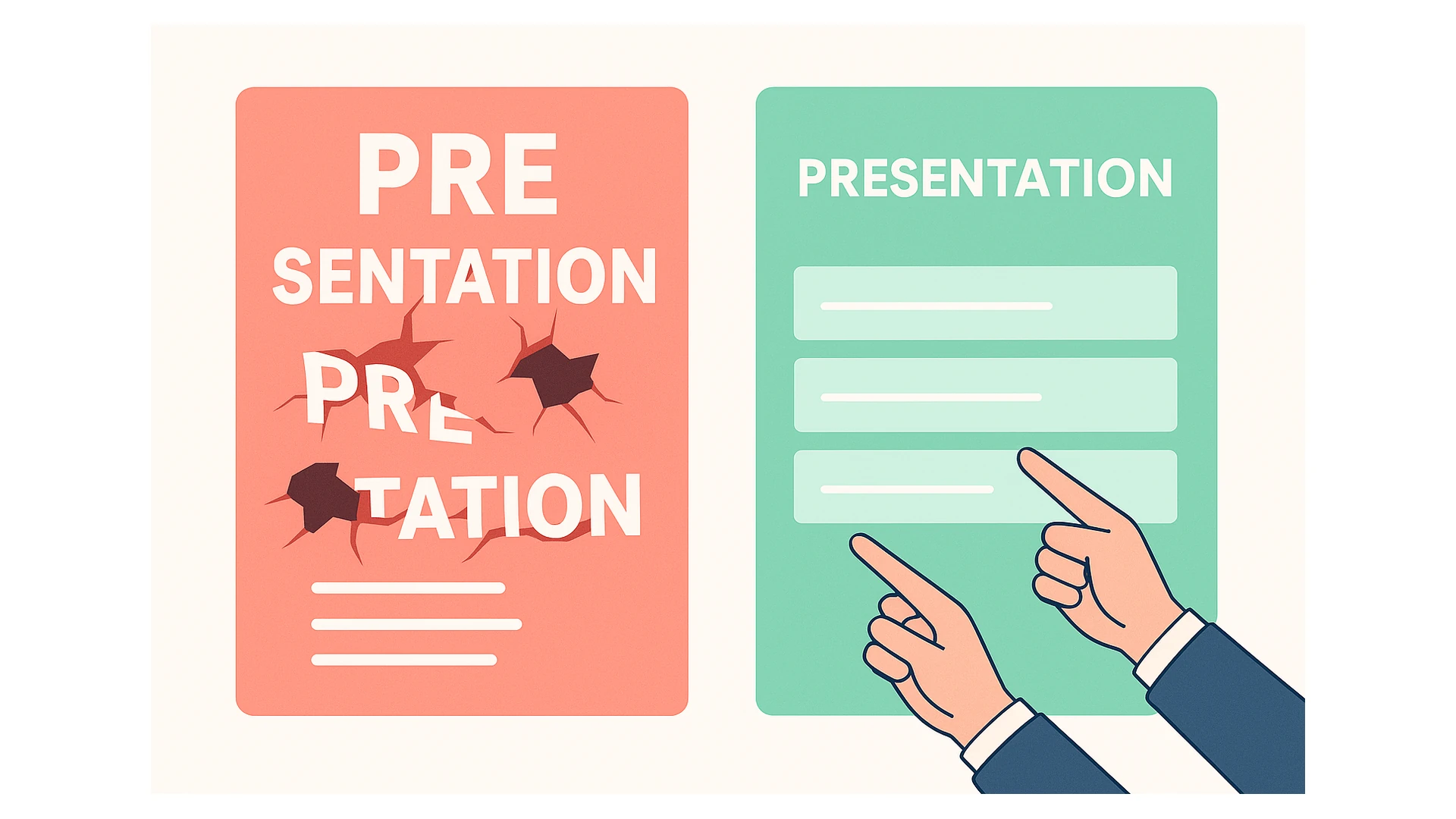
- Scrambled character fragments: A single continuous sentence gets sliced into dozens of disconnected single-line boxes that wrap awkwardly;
- Lost typography: Clean modern fonts get replaced with ugly default system fonts;
- Awkward blank gaps: Deleting an unwanted container box leaves a glaring white void in the background.
The Real Solution: Why "Layer Splitting" Is the Only Way
When dealing with slide presentations baked into flat images, brute-force OCR tools inevitably scramble sentences into broken character fragments and leave giant white holes when elements are moved.
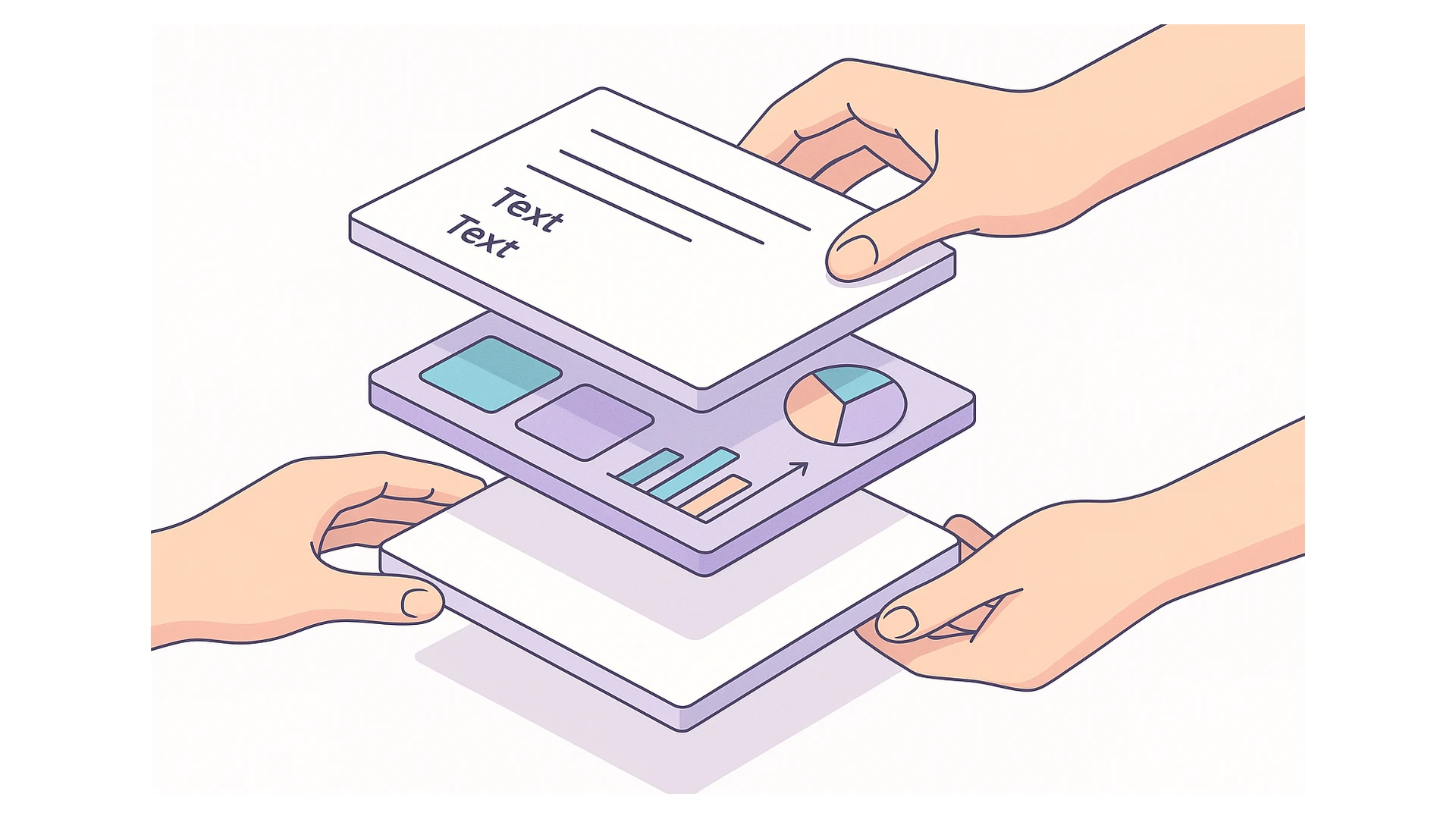
The only reliable architectural fix is to decompose the visual presentation into discrete, editable layers while preserving layout geometry:
1. Unified Paragraph Extraction: No Broken Fragments
Sentences and bullet points must be grouped into standard continuous paragraph text boxes rather than isolated single-character blocks. Double-clicking activates a natural typing cursor with fluid text wrapping.
2. Decoupled Cards & Containers: Full Layout Freedom
Callout boxes, summary cards, and diagram containers must be separated from the background plate as independent objects. Users can freely reposition cards, reorder sections, or delete elements with a single click.
3. Background Inpainting: No Blank Holes
When foreground cards and text boxes are lifted off the slide, the covered background textures, gradients, and lighting beneath must be intelligently restored. The exported slide master stays completely clean and usable.
Ready to Convert Your Deck or Check Real-World Boundaries?
Instead of spending entire evenings retyping text off static screenshots, you can experience how automated layer separation restores your slides into flexible, working presentations.
If you want to explore:
- The 3-step practical conversion guide (upload, inline preview, export .pptx);
- Our honest boundaries on complex charts and custom fonts;
- Answers to Frequently Asked Questions (FAQ);
👉 Read the step-by-step practical guide: Convert NotebookLM PDFs to Editable PowerPoint (PPTX)